Hide the code
a = 1 + 1
b = a + 1
print(b)To test a certain chunk of code, click the “Copy” icon in the lower right corner of the chunk block (see screenshot below)
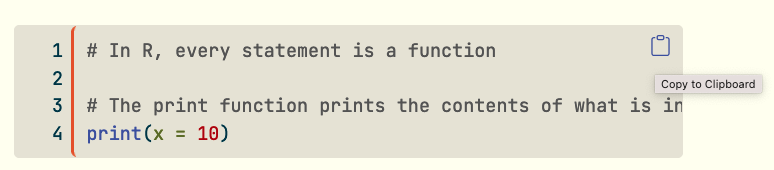
Try copying the following code
a = 1 + 1
b = a + 1
print(b)R is a powerful programming language and environment specifically designed for statistical computing and graphics. It’s free, open-source, and has a vast ecosystem of packages for data analysis, visualization, and machine learning.
R: The programming language and computing environment

RStudio: An integrated development environment (IDE) that makes R easier to use

RStudio organizes an analysis into four main panes. Knowing where each task belongs makes it easier to separate saved code, temporary output, data objects, and files.
.R scripts and Quarto documents.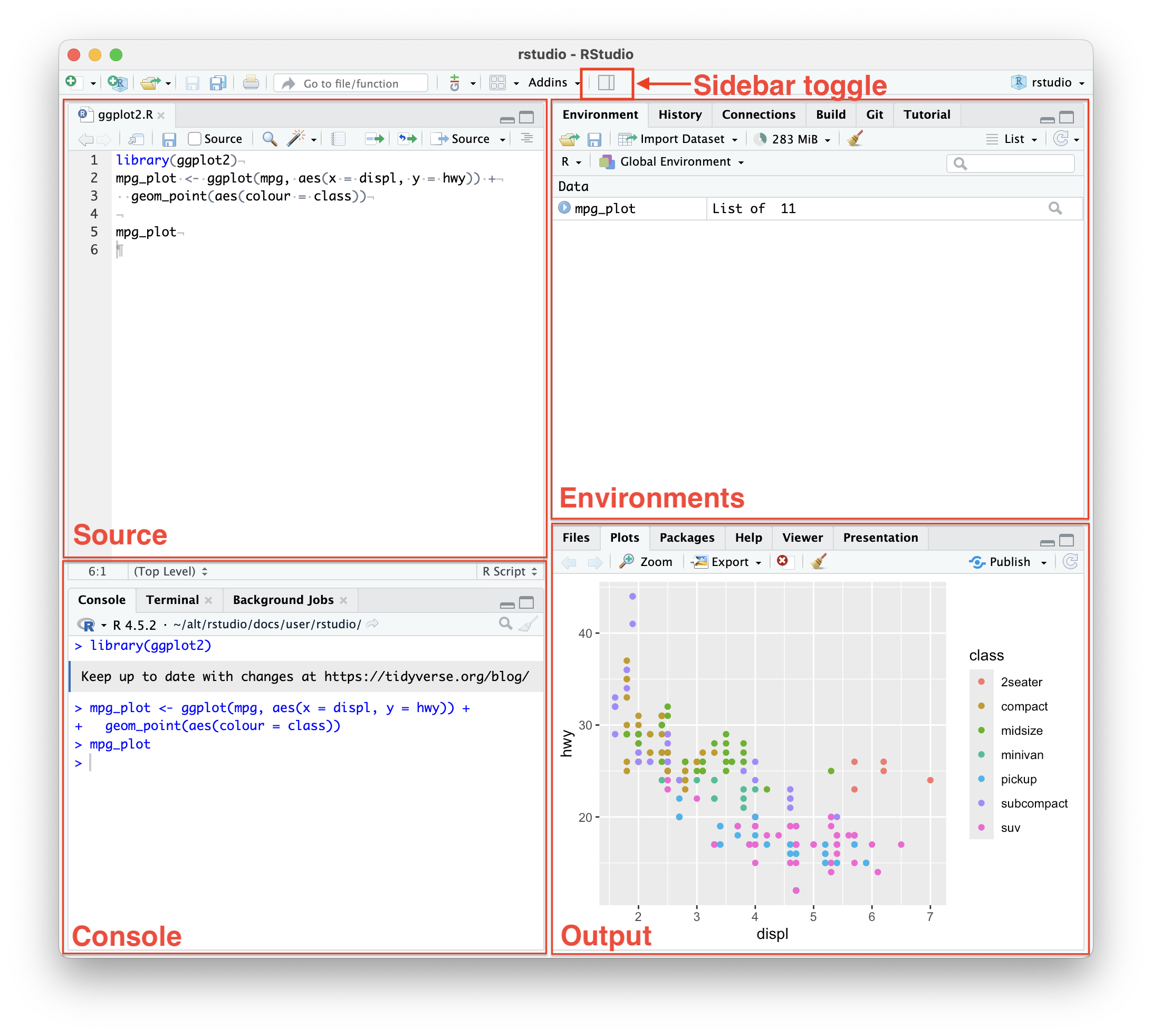
Screenshot source: Posit RStudio User Guide: Pane Layout.
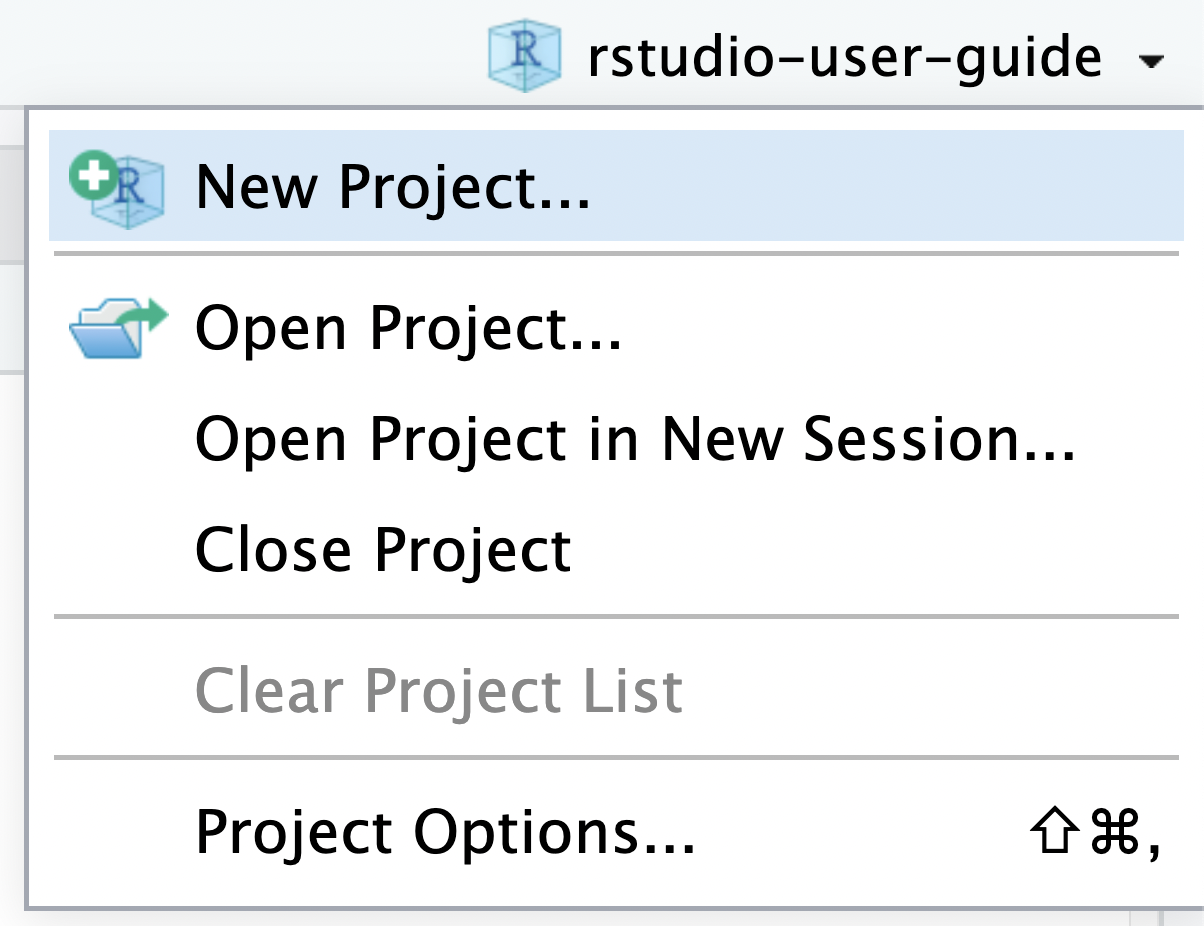
Screenshot source: Posit RStudio User Guide: RStudio Projects.
.R script rather than relying only on the Console.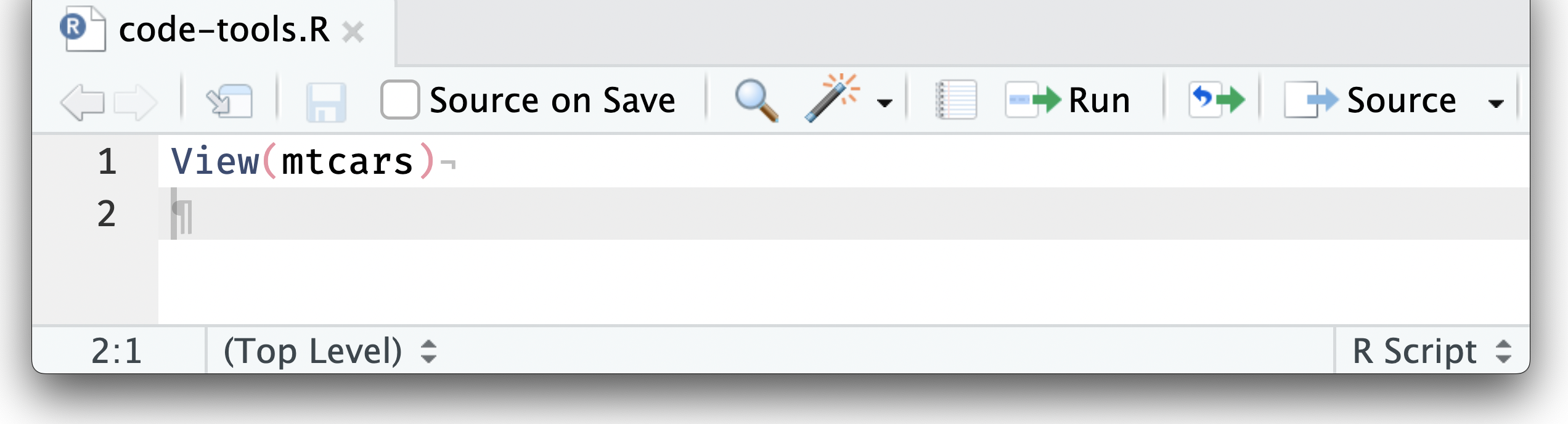
Screenshot source: Posit RStudio User Guide: Executing Code.
# R comments begin with a # -- there are no multiline comments

# RStudio helps you build syntax
#   GREEN: Comments and character values in single or double quotes
#   BLUE: Functions and keywords
#   BLACK: Variable names and values

# You can use the tab key to complete object names, functions, and arguments

# R is case sensitive. That means R and r are two different things.

# Good naming conventions:
#   - Use descriptive names: my_data instead of x
#   - Use underscores or dots: my_data or my.data
#   - Avoid spaces and special characters (except . and _)
#   - Don't start with numbers: 1data is invalid, data1 is valid


## Install the packages used in this tutorial once per computer
install.packages(
  c("dplyr", "ggplot2", "haven", "here", "psych", "readr", "tidyr")
)# R has several basic data types:
# 1. Numeric (double) - decimal numbers
numeric_value <- 3.14
class(numeric_value)
# 2. Integer - whole numbers
integer_value <- 42L # The L suffix makes it an integer
class(integer_value)
# 3. Character (string) - text
character_value <- "Hello, R!"
class(character_value)
# 4. Logical (boolean) - TRUE/FALSE
logical_value <- TRUE
class(logical_value)
# 5. Complex - complex numbers
complex_value <- 3 + 4i
class(complex_value)
# Check the type of any object
typeof(numeric_value)
is.numeric(numeric_value)
is.character(character_value)# In R, every statement is a function
# The print function prints the contents of what is inside to the console
print(x = 10)
# The terms inside the function are called the arguments; here print takes x
# To find help with what the arguments are use:
?print
# Each function returns an object
print(x = 10)
# You can determine what type of object is returned by using the class function
class(print(x = 10))
# Function syntax: function_name(argument1, argument2, ...)
# Examples of common functions:
sqrt(16) # Square root
abs(-5) # Absolute value
round(3.14159, 2) # Round to 2 decimal places
length(c(1,2,3,4)) # Length of a vector
sum(c(1,2,3,4)) # Sum of values
mean(c(1,2,3,4)) # Mean of values# R has excellent help documentation
?mean # Help for a function
??"regression" # Search for functions containing "regression"
help(mean) # Same as ?mean
example(mean) # Run examples for a function
# Online resources:
# - R Documentation: https://www.rdocumentation.org/
# - Stack Overflow: https://stackoverflow.com/questions/tagged/r
# - R-bloggers: https://www.r-bloggers.com/
# - RStudio Community: https://community.rstudio.com/
# Installing and loading packages
install.packages("package_name") # Install once
library(package_name) # Load each session
require(package_name) # Alternative to library()Vectors are the most basic data structure in R. They are one-dimensional arrays that can contain multiple elements of the same type (e.g., all numbers, all text, or all logical values).
# Use the c() function (combine) to create vectors
numeric_vector <- c(1, 2, 3, 4, 5)
character_vector <- c("apple", "banana", "cherry")
logical_vector <- c(TRUE, FALSE, TRUE)

# Display the vectors
numeric_vector
character_vector
logical_vectorA named vector associates each value with a descriptive label. Names make it possible to retrieve values by label instead of only by position.
# Store the mean outcome for each experimental condition
condition_means <- c(
  control = 72.4,
  online = 76.8,
  in_person = 81.2
)

# Display the complete named vector
condition_means

# Retrieve a value by its name
condition_means["in_person"]

# Inspect the vector's names
names(condition_means)
The names are labels attached to the values; they do not change the vector’s underlying numeric data type.
# Using the colon operator for simple sequences
sequence <- 1:10
sequence

# You can also create descending sequences
10:1# seq() gives you more control over sequences
# Create a sequence from 1 to 10, incrementing by 2
seq(from = 1, to = 10, by = 2)
# Create a sequence with exactly 5 equally-spaced values between 1 and 10
seq(1, 10, length.out = 5)# Repeat a single value multiple times
rep(5, times = 3)
# Repeat an entire vector multiple times
rep(c(1, 2), times = 3)
# Repeat each element multiple times before moving to the next
rep(c(1, 2), each = 3)# R performs operations element-wise on vectors
x <- c(1, 2, 3, 4, 5)
y <- c(10, 20, 30, 40, 50)
# Element-wise addition
x + y
# Element-wise multiplication
x * y
# Element-wise exponentiation
x^2
# You can also perform operations with a single value (vectorization)
x + 10
x * 2Factors are used for categorical variables in R. They store both the values and the levels (categories), which is essential for statistical analysis and plotting. R uses factors to understand categorical variables properly.
# Create a factor from a character vector
gender <- c("Male", "Female", "Male", "Female", "Male")
gender_factor <- factor(gender)
gender_factor

# Check the levels (categories)
levels(gender_factor)

# See how many observations in each category
table(gender_factor)# You can specify the order of levels explicitly
# This is useful when you want a specific order for plotting or analysis
education <- c("High School", "College", "Graduate", "High School")
education_factor <- factor(education,
levels = c("High School", "College", "Graduate"))
education_factor
# View the levels in the order you specified
levels(education_factor)# Use ordered = TRUE for ordinal data (categories with a meaningful order)
satisfaction <- c("Low", "Medium", "High", "Medium", "Low")
satisfaction_ordered <- factor(satisfaction,
levels = c("Low", "Medium", "High"),
ordered = TRUE)
satisfaction_ordered
# Notice the < signs indicating the order
print(satisfaction_ordered)The distinction between unordered and ordered factors determines which comparisons and statistical models are appropriate in practice.
| Scenario | Variable | Factor type | How it is used |
|---|---|---|---|
| Experimental conditions | Control, Online, In-person | Unordered | Compare each treatment group without assuming a ranking |
| Geographic region | North, South, East, West | Unordered | Estimate differences among categories without imposing an order |
| Satisfaction | Dissatisfied, Neutral, Satisfied | Ordered | Examine whether responses tend toward higher satisfaction |
| Disease severity | Mild, Moderate, Severe | Ordered | Model the probability of being in a higher severity category |
| Education | High school, Bachelor’s, Master’s, Doctorate | Ordered | Preserve the educational ranking without assuming equal distances between levels |
# Get frequency counts
table(gender_factor)# Convert factor back to character
as.character(gender_factor)
# Convert to numeric (gives you the underlying level numbers, not always useful)
as.numeric(gender_factor)
# Be careful: converting numeric to factor
age_values <- c(25, 30, 35, 25, 40, 30)
age_factor <- factor(age_values)
age_factor # Notice it treats each unique number as a separate category# cut() is ideal for dividing continuous data into intervals
ages <- c(22, 25, 30, 35, 40, 45, 50, 55, 60, 65)
age_categories <- cut(ages,
breaks = c(0, 30, 50, 100), # Define the breakpoints
labels = c("Young", "Middle", "Senior"), # Label each interval
include.lowest = TRUE) # Include the lowest value in the first interval
age_categories
# Check the distribution
table(age_categories)# ifelse() gives you more control over custom conditions
ages <- c(22, 25, 30, 35, 40, 45, 50, 55, 60, 65)
age_groups_custom <- ifelse(ages < 30, "Young",
ifelse(ages < 50, "Middle", "Senior"))
# Convert to an ordered factor
age_groups_factor <- factor(age_groups_custom,
levels = c("Young", "Middle", "Senior"),
ordered = TRUE)
age_groups_factor
# View the distribution
table(age_groups_factor)
summary(age_groups_factor)Factors are essential because they:
# Each object can be saved into the R environment (the workspace here)
#   You can save the results of a function call to a variable of any name
MyObject = print(x = 10)
class(MyObject)

# You can view the objects you have saved in the Environment tab in RStudio
# Or type their name
MyObject

# There are literally thousands of types of objects in R (you can create them),
#   but for our course we will mostly be working with data frames (more later)

# The process of saving the results of a function to a variable is called
#   assignment. There are several ways you can assign function results to
#   variables:

# The equals sign takes the result from the right-hand side and assigns it to
#   the variable name on the left-hand side:
MyObject = print(x = 10)

# The <- (Alt "-" in RStudio) functions like the equals (right to left)
MyObject2 <- print(x = 10)

identical(MyObject, MyObject2)

# The -> assigns from left to right:
print(x = 10) -> MyObject3

identical(MyObject, MyObject2, MyObject3)

# Best practice: Use <- for assignment (more explicit)
# Use = only for function arguments# Lists can contain elements of different types
my_list <- list(
name = "John",
age = 30,
scores = c(85, 90, 78),
passed = TRUE
)
# Accessing list elements
my_list$name
my_list[["age"]]
my_list[[3]]
# Lists are very flexible and useful for complex data structures# Matrices are 2-dimensional arrays with the same data type
my_matrix <- matrix(1:12, nrow = 3, ncol = 4)
my_matrix
# Creating matrices from vectors
matrix(c(1,2,3,4,5,6), nrow = 2, ncol = 3)
# Matrix operations
matrix1 <- matrix(1:4, nrow = 2)
matrix2 <- matrix(5:8, nrow = 2)
matrix1 + matrix2
matrix1 * matrix2 # Element-wise multiplicationA data frame stores rectangular data: each row represents an observation or case, and each column represents a variable. Importing data is not only a file-opening task. You must also verify that the software interpreted the rows, columns, missing values, and variable types correctly.
For this exercise, create an RStudio Project in the folder containing your script and the two practice data files. Keep raw data separate from exported results.
experiment-design-practice/
├── experiment-design-practice.Rproj
├── MakeFriendsWithR.R
├── heights.csv
├── wide.sav
└── outputs/
The here::here() function builds paths from the project root, which makes the same script easier to run on Windows, macOS, and Linux. Avoid setwd() and computer-specific absolute paths in code that others need to reproduce.
here::here()
list.files(here::here())heights.csv and inspect the data preview, variable names, delimiter, missing-value settings, and inferred variable types..R script so the import can be reproduced.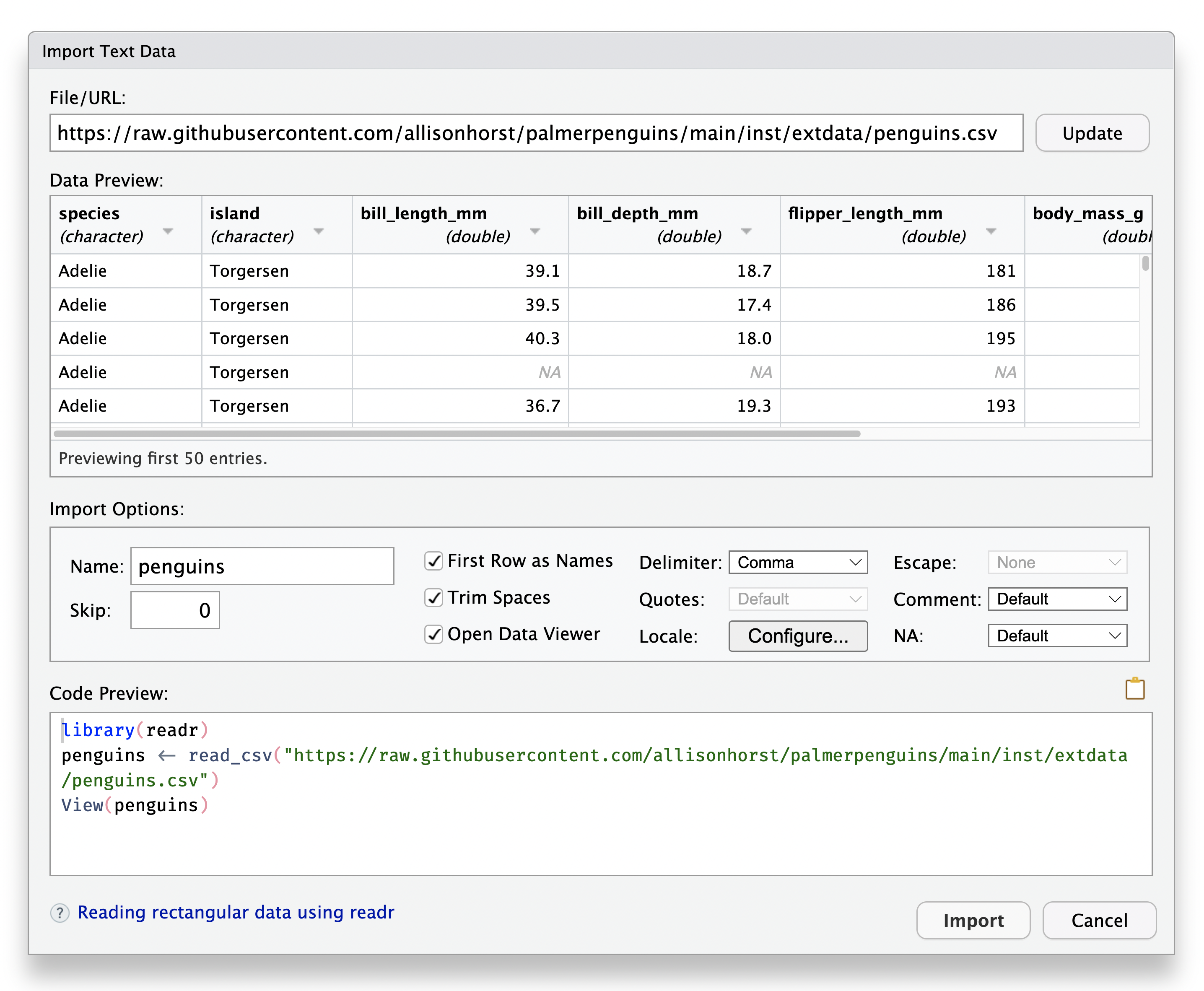
Screenshot source: Posit RStudio User Guide: Local Data.
The scripted import is the reproducible record of the choices made in the import window.
heights_data <- readr::read_csv(
  file = here::here("heights.csv"),
  show_col_types = FALSE
)

heights_data
Base R provides an alternative:
heights_data_base <- read.csv(
  file = here::here("heights.csv"),
  stringsAsFactors = FALSE
)The haven package imports SPSS .sav files and preserves useful metadata such as variable and value labels.
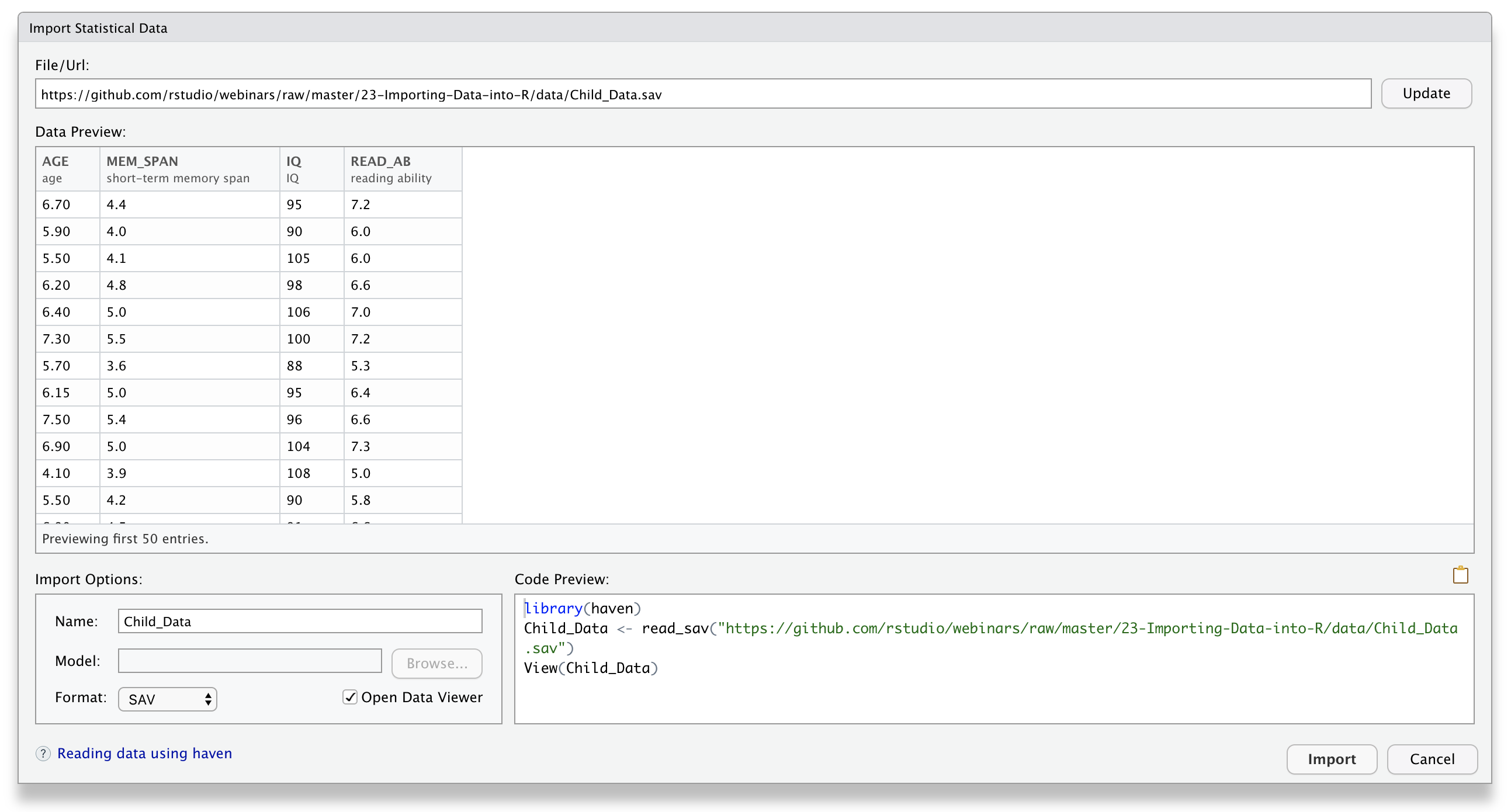
haven code.Screenshot source: Posit Support: Importing Data with the RStudio IDE.
wide_data <- haven::read_sav(
  file = here::here("wide.sav")
)

wide_dataLabels imported from SPSS are metadata, not a guarantee that a variable has the correct measurement level or coding. Verify the codebook, value labels, missing-value definitions, and experimental-unit identifier before analysis.
Use View() or select a data-frame object in the Environment pane to open RStudio’s spreadsheet-like Data Viewer.
dplyr::glimpse(heights_data)
summary(heights_data)
colSums(is.na(heights_data))
View(heights_data)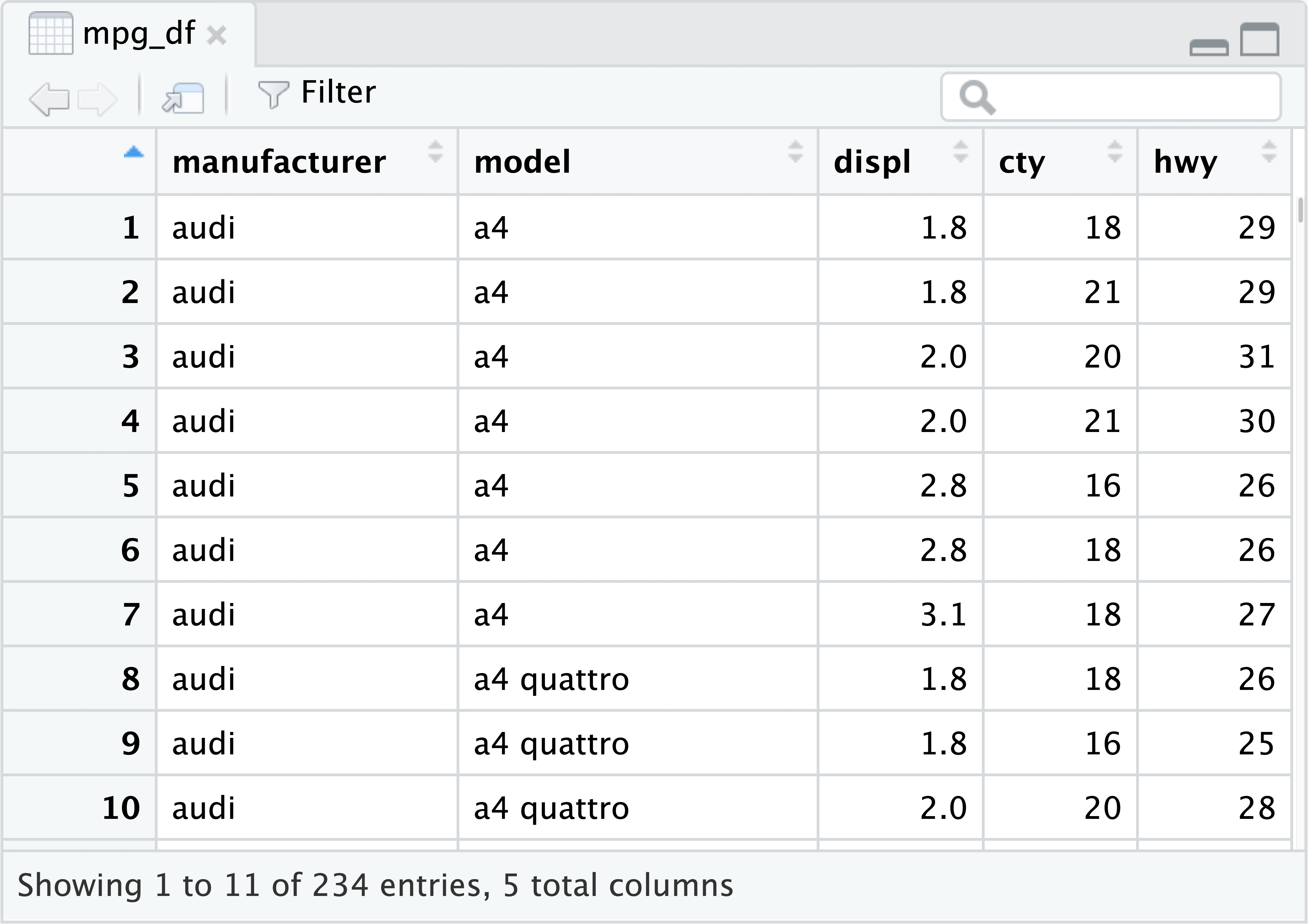
After every import, check at least the following:
-99 or blank strings.Sorting or filtering in the Data Viewer changes only the display. Record all substantive data transformations in the script.
Screenshot source: Posit RStudio User Guide: Data Viewer.
Keep the original files unchanged. Write cleaned or transformed data to a separate outputs folder with informative file names.
output_dir <- here::here("outputs")
dir.create(output_dir, showWarnings = FALSE)

# CSV is portable across statistical software.
readr::write_csv(
  heights_data,
  file = file.path(output_dir, "heights-clean.csv"),
  na = ""
)

# SPSS preserves a workflow for collaborators who use .sav files.
haven::write_sav(
  wide_data,
  path = file.path(output_dir, "wide-clean.sav")
)

# RDS preserves R-specific classes and attributes.
saveRDS(
  object = list(heights = heights_data, wide = wide_data),
  file = file.path(output_dir, "imported-data.rds")
)

list.files(output_dir).sav compatibility.After exporting, reopen the saved file and verify its dimensions, variable names, types, missing values, and labels before sharing or analyzing it.
# Data frames are the most common data structure for statistical analysis
# They are like spreadsheets with rows (observations) and columns (variables)

# Basic data frame operations
dim(heights_data)        # Dimensions (rows, columns)
nrow(heights_data)       # Number of rows
ncol(heights_data)       # Number of columns
names(heights_data)      # Column names
str(heights_data)        # Structure of the data frame
head(heights_data)       # First 6 rows
tail(heights_data)       # Last 6 rows
summary(heights_data)    # Summary statistics

# Accessing data frame elements
heights_data[1, 2]       # Row 1, Column 2
heights_data[1:5, ]      # Rows 1-5, all columns
heights_data[, "ID"]     # All rows, column named "ID"
heights_data$ID          # Same as above (preferred method)

# Subsetting data frames
subset(heights_data, HeightIN > 70)
heights_data[heights_data$HeightIN > 70, ]Optional: Extended R Skills
The remaining sections cover optional extended R skills. They are useful for deeper practice but are not required for the core lesson.
# The wide_data and heights_data have the same set of ID numbers.
# We can use the merge() function to merge them into a single data frame.
# Here, x is the name of the left-side data frame and y is the name of the
# right-side data frame. The arguments by.x and by.y specify the variable(s)
# by which we will merge:
all_data <- merge(
  x = wide_data,
  y = heights_data,
  by.x = "ID",
  by.y = "ID"
)
all_data

## Method 2: Use dplyr method (the pipe operator |> can be typed using Ctrl+Shift+M on Windows or Cmd+Shift+M on Mac)
library(dplyr)
wide_data |>
  left_join(heights_data, by = "ID")

# Different types of joins:
# left_join(): Keep all rows from left table
# right_join(): Keep all rows from right table
# inner_join(): Keep only rows that appear in both tables
# full_join(): Keep all rows from both tablesIn wide format, repeated measurements occupy separate columns. pivot_longer() stacks those columns into a measurement column and a value column, producing multiple rows for each participant.

pivot_longer(). The participant ID is repeated for each measurement. Source: R for Data Science (2e), Figure 5.3.# Sometimes, certain packages require repeated measures data to be in a long
# format (where each measurement is on a separate row rather than in separate columns).
library(dplyr) # contains variable selection
## Wrong Way (pivoting DV and Age separately creates unwanted combinations)
all_data_long <- all_data |>
tidyr::pivot_longer(starts_with("DVTime"), names_to = "DV", values_to = "DV_Value") |>
tidyr::pivot_longer(starts_with("AgeTime"), names_to = "Age", values_to = "Age_Value")
one_person <- all_data_long |>
filter(ID == "1")
one_person
## Correct Way (pivot both variables together, then separate and widen properly)
all_data_long <- all_data |>
tidyr::pivot_longer(c(starts_with("DVTime"), starts_with("AgeTime"))) |>
tidyr::separate(name, into = c("Variable", "Time"), sep = "Time") |>
tidyr::pivot_wider(names_from = "Variable", values_from = "value")
one_person <- all_data_long |>
filter(ID == "1")
one_person
# Understanding data reshaping:
# Wide format: Each time point has its own column
# Long format: Time points are in rows, with a time variableIn this exercise, you will practice reshaping repeated-measures data from wide format to long format using a dplyr pipeline (with tidyr functions).
id, time, dv, and age.dv by time as a verification step.# Load packages
library(dplyr)
library(tidyr)
# 1) Start from a small wide toy data set
toy_wide <- tibble::tribble(
~id, ~dv_time1, ~dv_time2, ~dv_time3, ~age_time1, ~age_time2, ~age_time3,
1, 10, 12, 15, 20, 21, 22,
2, 8, 11, 11, 19, 20, 21,
3, 14, 13, 16, 21, 22, 23
)
# 2) YOUR TURN: Convert to long using a single dplyr pipeline
# Goal columns: id, time (1/2/3), dv, age
# Hints:
# - Use pivot_longer() on both dv_ and age_ columns together
# - Separate the column name into variable (dv/age) and time (1/2/3)
# - Use pivot_wider() to spread variable back into dv and age columnstoy_long <- toy_wide |>
pivot_longer(
cols = c(starts_with("dv_"), starts_with("age_")),
names_to = "name",
values_to = "value"
) |>
separate(name, into = c("variable", "time"), sep = "_time") |>
pivot_wider(names_from = variable, values_from = value) |>
mutate(time = as.integer(time))
toy_long
toy_long |>
group_by(time) |>
summarize(mean_dv = mean(dv, na.rm = TRUE), .groups = "drop")# The dplyr package provides an intuitive set of functions for data manipulation
# Select columns
all_data |>
select(ID, starts_with("DV"))
# Filter rows
all_data |>
filter(ID < 5)
# Arrange rows
all_data |>
arrange(ID)
# Create new variables
all_data |>
mutate(
DV_avg = (DVTime1 + DVTime2 + DVTime3) / 3,
DV_range = DVTime3 - DVTime1
)
# Group and summarize
all_data_long |>
group_by(Time) |>
summarize(
mean_DV = mean(DV, na.rm = TRUE),
sd_DV = sd(DV, na.rm = TRUE),
n = n()
)# The psych package provides convenient functions for computing descriptive statistics.
## If you haven't installed it yet, run: install.packages("psych")
library(psych)
# Use describe() to get comprehensive descriptive statistics for all variables:
descriptives_wide <- describe(all_data)
descriptives_wide
descriptives_long <- describe(all_data_long)
descriptives_long
# Use describeBy() to compute descriptive statistics separately for each group:
descriptives_long_id <- describeBy(all_data_long, group = all_data_long$ID)
descriptives_long_id
# Basic descriptive statistics without packages:
mean(all_data_long$DV, na.rm = TRUE)
median(all_data_long$DV, na.rm = TRUE)
sd(all_data_long$DV, na.rm = TRUE)
var(all_data_long$DV, na.rm = TRUE)
min(all_data_long$DV, na.rm = TRUE)
max(all_data_long$DV, na.rm = TRUE)
quantile(all_data_long$DV, probs = c(0.25, 0.5, 0.75), na.rm = TRUE)# You can transform data by creating new variables.
all_data_long$AgeC <- all_data_long$Age - mean(all_data_long$Age)
# You can also use functions to create new variables. Here we create new terms
# using the function for significant digits:
all_data_long$AgeYear <- signif(x = all_data_long$Age, digits = 2)
all_data_long$AgeDecade <- signif(x = all_data_long$Age, digits = 1)
head(all_data_long)
# Common data transformations:
# Centering: subtract mean
# Standardizing: (x - mean) / sd
# Log transformation: log(x)
# Square root: sqrt(x)
# Recoding: ifelse(condition, value_if_true, value_if_false)
# Example: Create standardized variables
all_data_long$DV_z <- scale(all_data_long$DV)
all_data_long$Age_z <- scale(all_data_long$Age)# R has excellent plotting capabilities
# Base R plotting
hist(all_data_long$DV, main = "Distribution of DV", xlab = "DV Values")
boxplot(DV ~ Time, data = all_data_long, main = "DV by Time")
plot(all_data_long$Age, all_data_long$DV, main = "DV vs Age")
# Using ggplot2 (more modern and flexible)
# If you have not install the package yet, type in install.packages("ggplot2")
library(ggplot2)
# Histogram
ggplot(all_data_long, aes(x = DV)) +
geom_histogram(bins = 30) +
labs(title = "Distribution of DV", x = "DV Values", y = "Count")
# Boxplot
ggplot(all_data_long, aes(x = Time, y = DV)) +
geom_boxplot() +
labs(title = "DV by Time")
# Scatter plot
ggplot(all_data_long, aes(x = Age, y = DV)) +
geom_point() +
geom_smooth(method = "lm") +
labs(title = "DV vs Age")hw0_feedback <- read.csv(here::here("teaching/2025-01-13-Experiment-Design/Lecture01", "hw0_feedback.csv"))
table(hw0_feedback$Feedback)# Conditional statements (if-else)
x <- 10
if (x > 5) {
print("x is greater than 5")
} else {
print("x is less than or equal to 5")
}
## Alternative method using ifelse() function (vectorized)
ifelse(x > 5,
print("x is greater than 5"),
print("x is less than or equal to 5"))
# For loops (repeat code a specific number of times)
for (i in 1:5) {
print(paste("Iteration", i))
}
# While loops (repeat code while a condition is TRUE)
i <- 1
while (i <= 5) {
print(paste("While iteration", i))
i <- i + 1
}
# Apply functions (more efficient and "R-like" than explicit loops)
numbers <- 1:10
sapply(numbers, function(x) x^2) # Returns a vector
lapply(numbers, function(x) x^2) # Returns a list# R uses NA (Not Available) to represent missing data
# Check for missing values in a variable
is.na(all_data_long$DV) # Returns TRUE/FALSE for each value
sum(is.na(all_data_long$DV)) # Count the number of missing values
complete.cases(all_data_long) # Check which rows have no missing data
# Remove rows that contain any missing data
all_data_long_complete <- na.omit(all_data_long)
# Alternative method (same result):
all_data_long_complete <- all_data_long[complete.cases(all_data_long), ]
# Replace missing values with the mean (simple imputation)
all_data_long$DV_imputed <- ifelse(
is.na(all_data_long$DV),
mean(all_data_long$DV, na.rm = TRUE),
all_data_long$DV
)# 1. Always use meaningful variable names
# 2. Comment your code
# 3. Use consistent formatting
# 4. Check your data after importing
# 5. Save your work regularly
# 6. Use version control (Git)
# 7. Write reproducible code
# 8. Use packages for common tasks
# 9. Learn to use help documentation
# 10. Practice regularly!
# Useful keyboard shortcuts in RStudio:
# Ctrl+Enter (Cmd+Enter on Mac): Run the current line or selected code
# Ctrl+Shift+Enter (Cmd+Shift+Enter on Mac): Run the entire script
# Ctrl+Shift+M (Cmd+Shift+M on Mac): Insert the pipe operator |>
# Ctrl+Shift+C (Cmd+Shift+C on Mac): Comment or uncomment selected lines
# Ctrl+Shift+R (Cmd+Shift+R on Mac): Insert a code section header